Preparing the environment (Windows)
About
This page describes the steps required for setting up the development infrastructure on a Windows-based machine.
Prerequisites
Before getting started, make sure you have a machine running Windows 11 natively. Regardless of the chosen environment, we’re going to have to manually install some packages, which are listed below:
Package name |
Download link |
Comments |
|---|---|---|
PuTTY |
Can also download from Microsoft Store |
|
WSL 2 |
Follow instructions from link |
Note
We recommend choosing Ubuntu as the WSL distribution.
Once WSL is installed, start a new session by running:
wsl
inside a Powershell or a Command Prompt terminal. After doing so, we’re going to need some additional packages, which can be installed by running:
sudo apt-get update
sudo apt-get install -y git python3-venv python3 python3-pip
Note
For the following sections, all of the commands will be issued inside WSL unless explicitly mentioned otherwise.
Cloning the repository
To clone the project repository:
git clone https://github.com/NXP-Research/lkss-main && cd lkss-main
Preparing the python environment
Follow steps from Preparing the python environment.
Warning
Don’t forget to activate the python virtual environment each time you start a new WSL session.
Native development
Follow steps from Linux native development.
Docker development
Prerequisites
To get started, we’re going to have to install Docker. To do so, follow these instructions.
Note
Use WSL 2 as backend.
If everything went well with the installation, you should now be able to start Docker Desktop. To do so, open the Start menu and type in Docker Desktop as shown below:
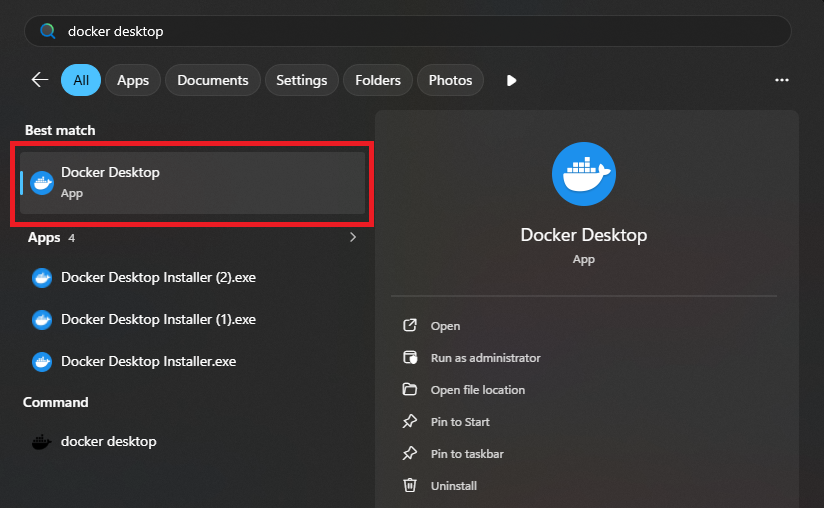
Starting Docker Desktop
After opening Docker Desktop, you should now be greeted with the following interface:
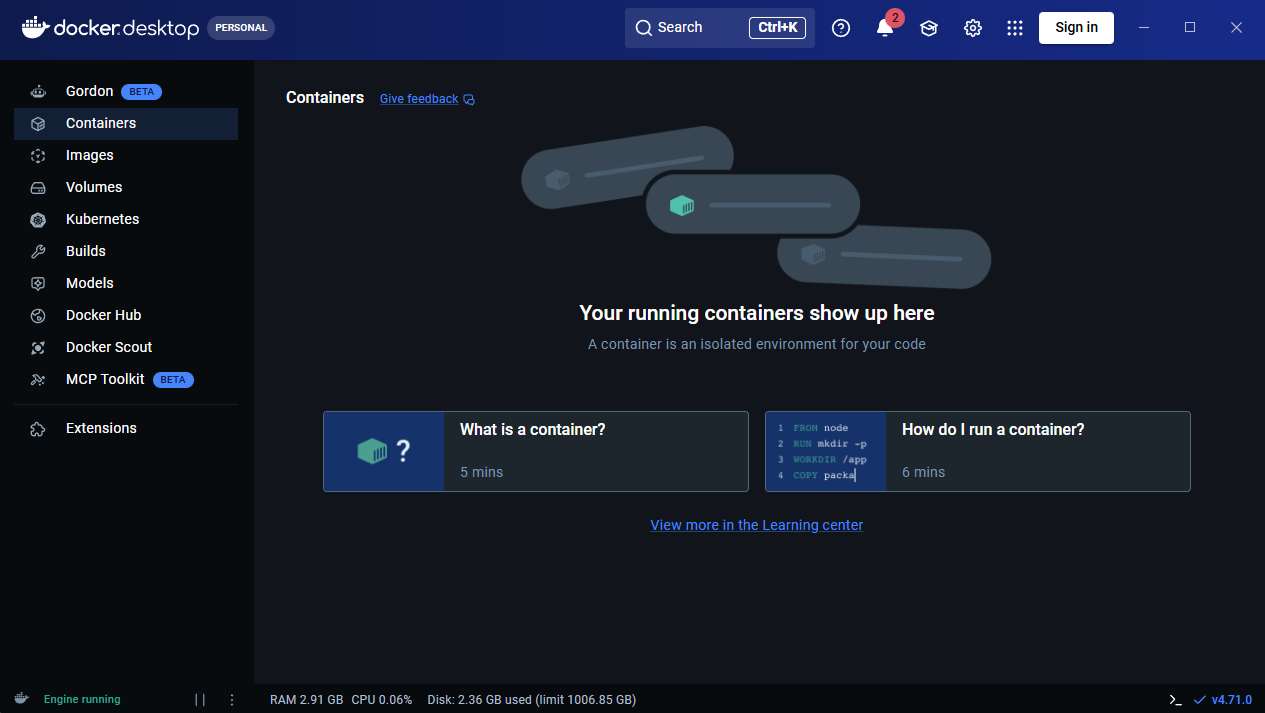
Docker Desktop interface
For now, you can close the Docker Desktop interface since we’re going to be using the CLI for container and image management.
Note
After closing the Docker Desktop interface, the process should remain running.
To check this, navigate to the bottom right of your screen, press on the upward facing arrow and look for the docker icon as shown below:
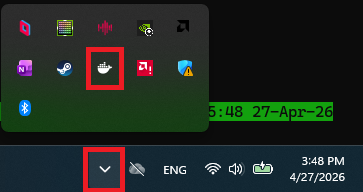
Warning
Please make sure the Docker Desktop process is running before you start developing.
Docker environment initialization
With Docker installed, we can now proceed with the environment initialization:
./scripts/lkss.py init --runner docker -f
Warning
If you get an error similar to:
RuntimeError: Unable to find docker - please install it
even though you’ve already installed Docker Desktop, please make sure that the Docker Desktop process is running. See Prerequisites.
If all commands issued so far have returned successfully, your environment should now be prepared for Docker development.